Prepared in BIOS
Firstly, you need to enable WOL in your bios settings, commonly called Wake by Lan or Wake by PCIE device.
Then, save and restart the computer and log in to the Ubuntu OS.
Configure your network
You need the sudo permissions to edit some of the configuration files.
Use your commonly used editor(like vim or nano) to edit the /etc/netplan/02-wol.yaml, or you may need to create it.
| |
You need to change the interface-name to your name of an interface, and change the xx:xx:xx:xx:xx:xx to your MAC address, which can be found after using ifconfig.
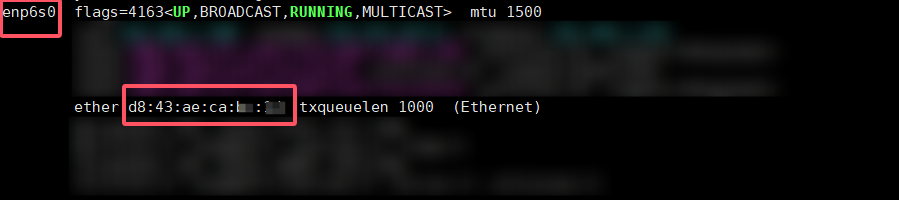
The enp6s0 on the top left corner is my interface name, and the d8:43:ae:ca:xx:xx is my MAC address. Replace them with yours.
Then reboot your computer and use the command sudo ethtool enp6s0 | grep Wake to check the configuration above.
If you get a message like this:
| |
the configuration is successful.
The Wake-on: g means you can use a magic frame to wake your computer up. If the flag is d, the computer won’t be woken up by Lan.